Billing Control - Recurring Payments
| How do I get here? | Financial Menu ► Billing Control Panel ► Recurring Payments Financial Menu ► Transaction Posting ► Task menu ► Process Recurring Payments |
| Purpose |
Once the bill run is finished and charge transactions have been posted into the system, it is time to process payments for customers who have setup automatic payment arrangements. *Note: This can occur before or after the Email Billing step. This order of operations is a client preference whether the email notification will show the payment or if the payment comes after the full amount due is emailed to the customer. This tab will show all customers that 1) have setup a credit card or ACH account for recurring payment terms , 2) also has a positive balance on their account or 3) has initiated a queued ACH payment. The tab allows for realtime or batch payment processing for both credit cards and ACH. The Recurring Type dropdown will determine the type of payments that will be processed. The summary table will show all payment totals grouped by Cycle. Important: Clients need to work with Precision directly to setup a connection to a payment processor. If this step is not completed, this tab will not function. |
| Security | Billing Module |
| Taxing Impact | N/A |
| Commission Impact | N/A |
| Data Field Definitions | N/A |

The Recurring Payments tab is used to process recurring Credit Card and ACH Payments. This process may be ran after billing or on a specific day or days of the month or even on a daily basis depending on your business rules.
Processing Interface: Real time & Batch:
Depending on the client setup, the payment processing may be real time (i.e., hitting each card/bank account immediately) or done using a batch process where the payments are all pulled into a secure file which is then sent to the payment processor for processing. With this latter approach, response files are then pulled back into the TBS system for processing to see which cards/accounts were successful. This approach is useful for large amounts of transactions (>5000).
Recurring Payment Types:
TBS supports a variety of payment types within the Credit Card and ACH processing function. These options will depend upon how the client's payment processing has been configured as well as if any customers have current balances to be paid for that type. For instance, a client may only support Credit Card payments and not ACH payments or vice versus. Whatever the configuration, options will appear in the Recurring Types dropdown. Once a specific recurring type is selected, customer accounts that match the selection will load into the Recurring Types Cycles table on the right. Examples of Recurring Payment Types such as Recurring CCs, Recurring ACHs, Daily CCs are explained in more detail below.
A few notes regarding terminology:
1 - The term "Daily" is used when the Client has been configured to allow a specific day of the month to be chosen by the customer when signing up for recurring payments. For example, a customer can select for their payment to be processed on the 15th of the month. When this Recurring Type is selected, a calendar control will appear so that a specific date or date range can be selected and all customers that have chosen dates within that range will show in the Recurring Types Cycles table to be processed. Note: Clients can choose to have an automated process setup that will run automatically each day to process these payments vs. running these manually. Please be sure to work with your Precision Account Manager to setup this process.
2 - The term "Queued" is used when the Client supports a process that allows customers to manually initiate an ACH payment to be processed at a later time. The payments are "queued" and then can all be retrieved and processed at one time.
3 - The term "Recurring" is used to refer to customers who have elected to have a payment automatically processed each month, either via Credit Card or ACH. There is no specific date and the recurring process timing is determined by the Client .
Recurring Types drop down options may include one or more of the following:
- Daily ACH - ACH payments for customers who have a balance and are set up for an ACH payment date within the payment date range selected on the calendar control.
- Daily CCs - Credit Card payments for customers who have a balance and are set up for a Credit Card payment date within the payment date range selected on the calendar control.
- Daily ACHs & CCs - Option allows Daily ACH and Daily CCs to be ran at the same time.
- Queued ACHs - Includes payments manually initiated by customers from the Bank Accounts tab, but are not sent in real time. These transactions are essentially in a "waiting" status to be picked up by the Recurring Payment process.
- Daily / Queued ACHs - Option allows both Daily ACHs (mentioned above) and Queued ACHs (also mentioned above) to be processed at the same time.
- Daily / Queued ACHs & CCs - Option allows Daily and Queued ACHs as well as any Daily CCs to be processed at the same time.
- Recurring ACHs - ACH payments for customers who have selected to have setup a Bank Account for automatic payments each month (no specific date is chosen).
- Recurring CCs - Credit Card payments for customers who have selected to have setup a Credit Card for automatic payments each month (no specific date is chosen).
- Recurring ACHs & CCs - Option allows both Recurring ACHs and CCs to be ran at the same time.
For most of the above Recurring Types mentioned above, the process below will outline each of the major Pre-Processing, Processing and Post-Processing steps. Some options may require additional steps.
Initiation Processes
Initiation Step 1: Select the appropriate Recurring Payment Types you wish to process:
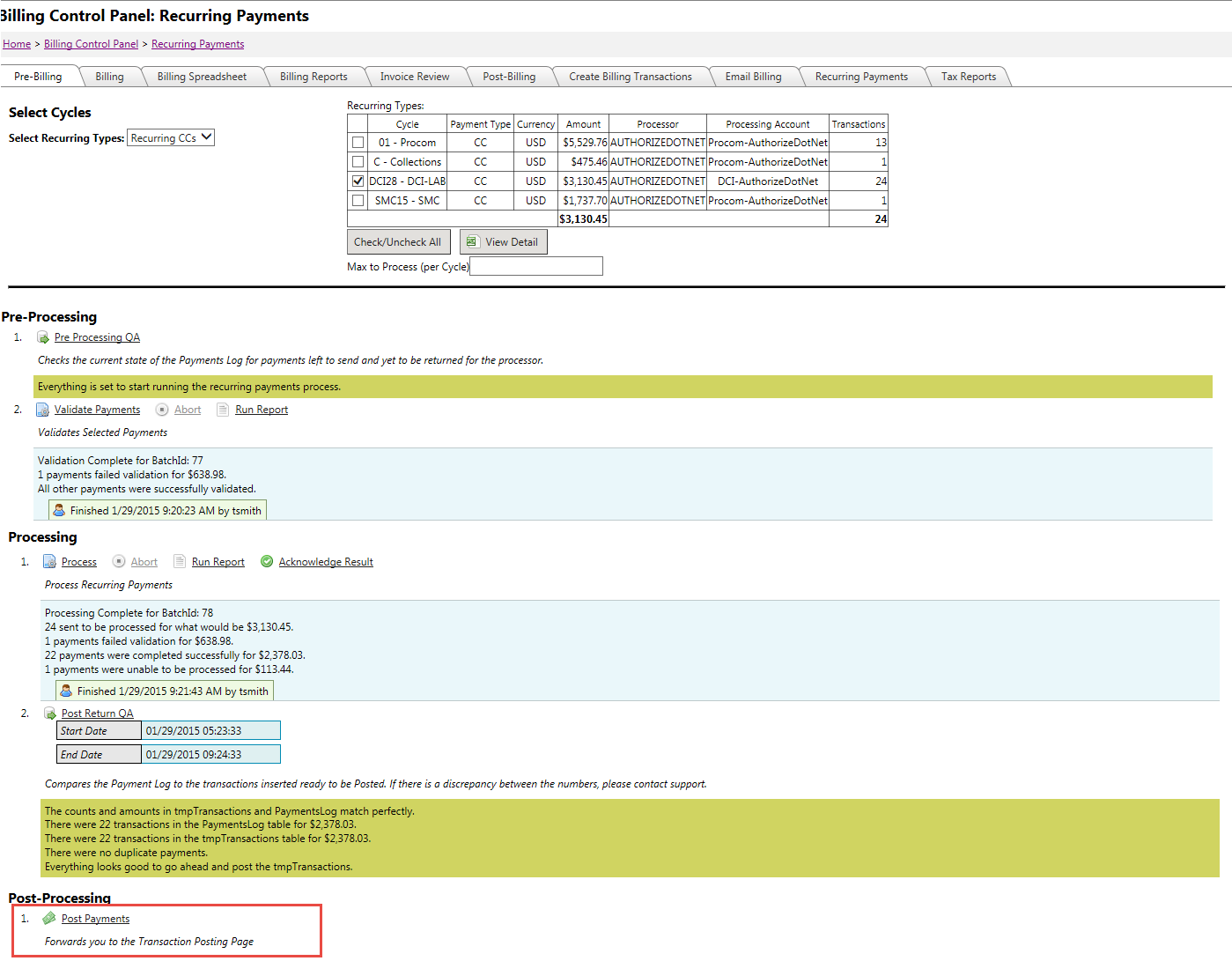
To get started, you must select the Recurring Type you wish to process as well as the Cycles that need to be processed. Once the selection is made, the Recurring Types Cycle table on the right side of the screen should be filled with Cycle data showing the type, currency, amount and number of transactions that can be processed.
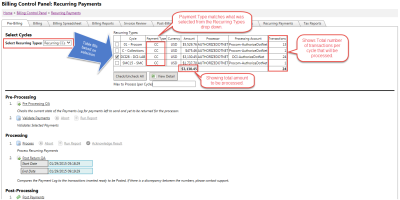

Initiation Step 2: Select the appropriate Cycle(s) you wish to process:
Each Cycle will have a line record in the Recurring Types Cycle table. Cycles can be ran individually or all at one time by selecting the checkbox next to the corresponding cycle(s). Totals in the table will reflect only those cycles that have been selected.
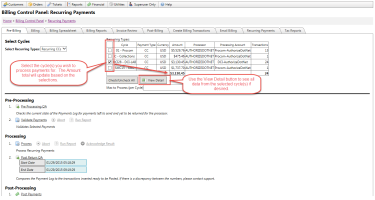
All the customer data that will be used can be viewed and verified using the View Detail button located below the Recurring Types Cycle table.
Pre-Processing
Pre-Processing Step 1: Pre Processing QA:
It is important to QA the selected cycle data before sending payments to the processor. This ensures verification of all accounts as well as ensures that there aren't any payments waiting to be returned from a Batch process (if used).
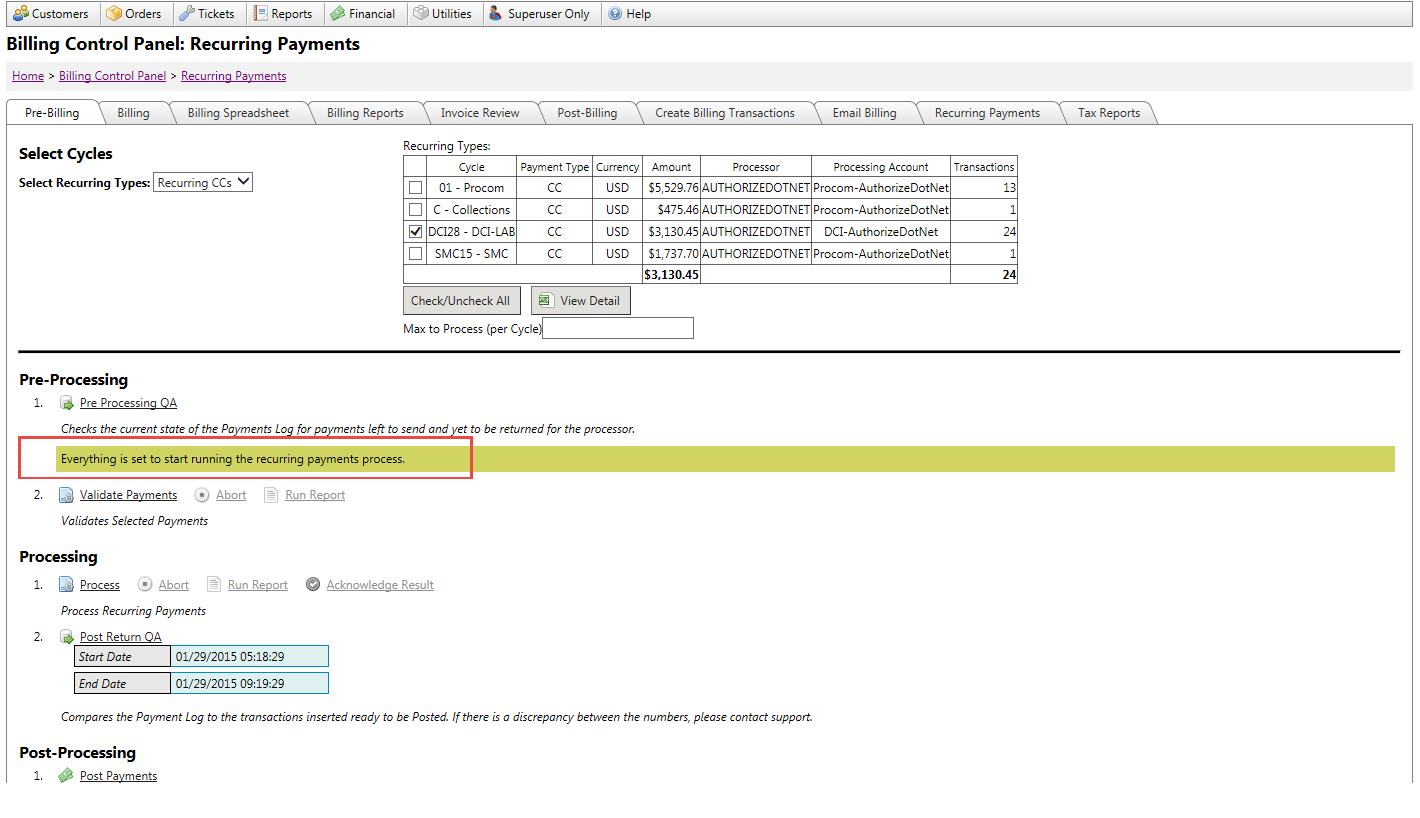
With the Cycle(s) still selected in the Recurring Type Cycles table, click the Pre Processing QA button. A confirmation should appear indicating that everything is ready to run the recurring payments process. If there are issues, please be sure to contact your Precision Account Manager.
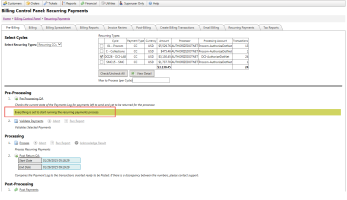
Pre-Processing Step 2: Validate Payments:
With each payment processor, there are several guidelines that a payment account must meet in order for it to be validated and processed. This step is to review any issues that may prevent processing prior to the live payment being sent so that, if present, they may be resolved proactively. An example of this would be if your processor was setup to not process expired cards (this is an application setting per client). This step would allow you to see any customer accounts scheduled to automatically pay, but have an expired card on file. These can then be handled appropriately by the client prior to live processing.
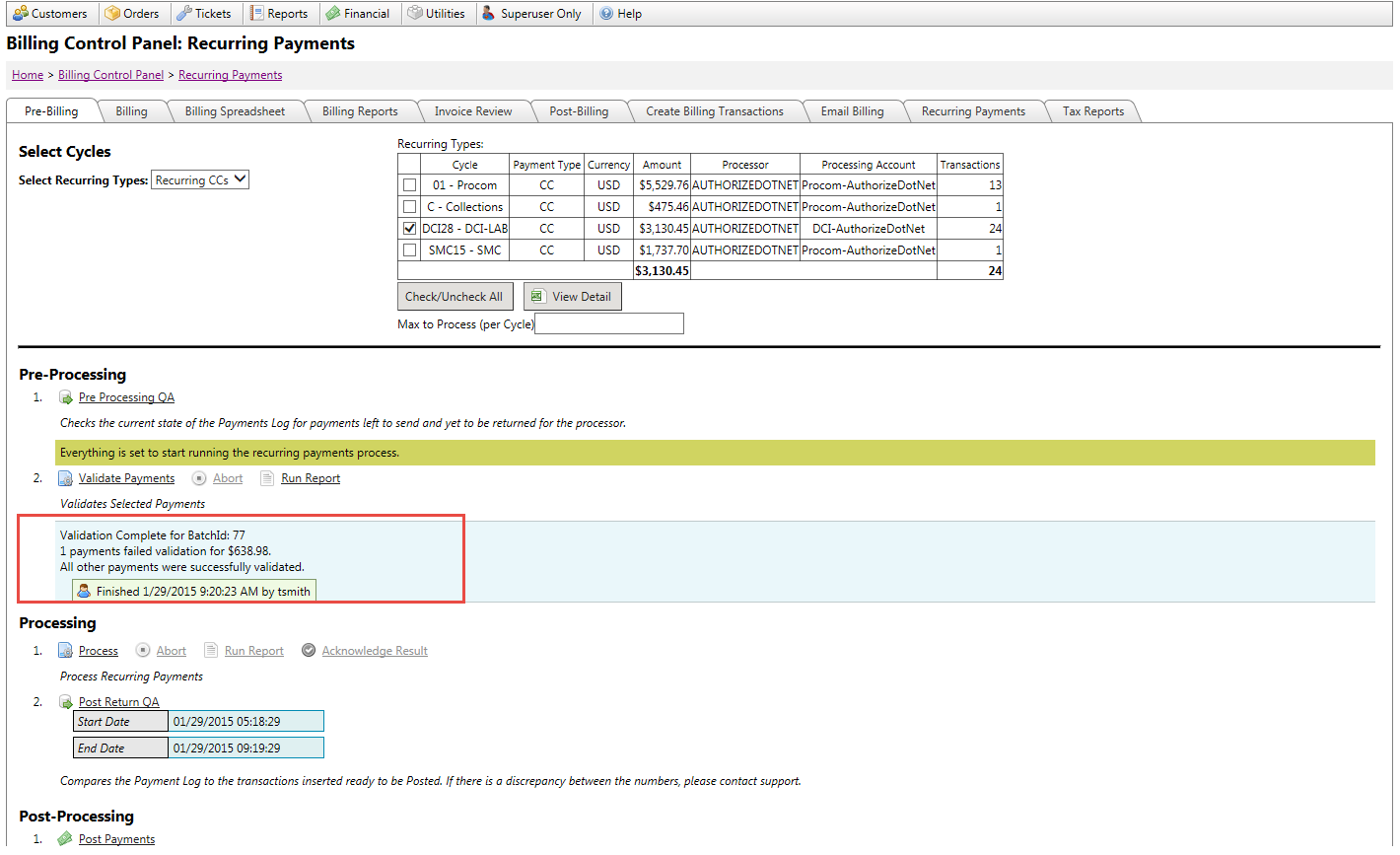
With the Cycle(s) still selected in the Recurring Type Cycles table, click the Validate Payments button. A confirmation will appear reporting the results. If there are any fails, those can be viewed by clicking the Run Report link.
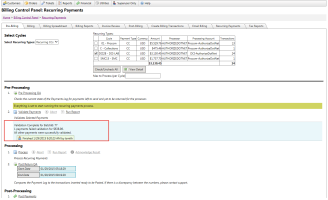

Processing
Now that we have completed our QA and validation, we are ready to process the payments using the live payment processor.
Processing Step 1: Process (or Send Files)
Real Time Processing:
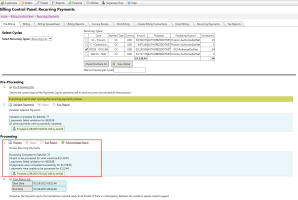
For Realtime Credit Card processing, with the Cycle(s) still selected in the Recurring Type Cycles table, click the Process button. A progress / information message will appear showing the status of the payments being processed. Once the payments are finished being processed, a confirmation message will appear showing the results of the payments processed. Additional details of the results can be viewed using the Run Report link.
Batch Processing:

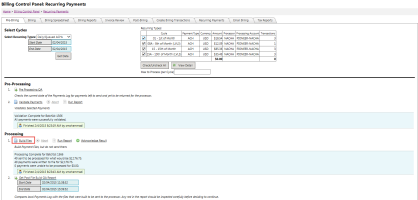
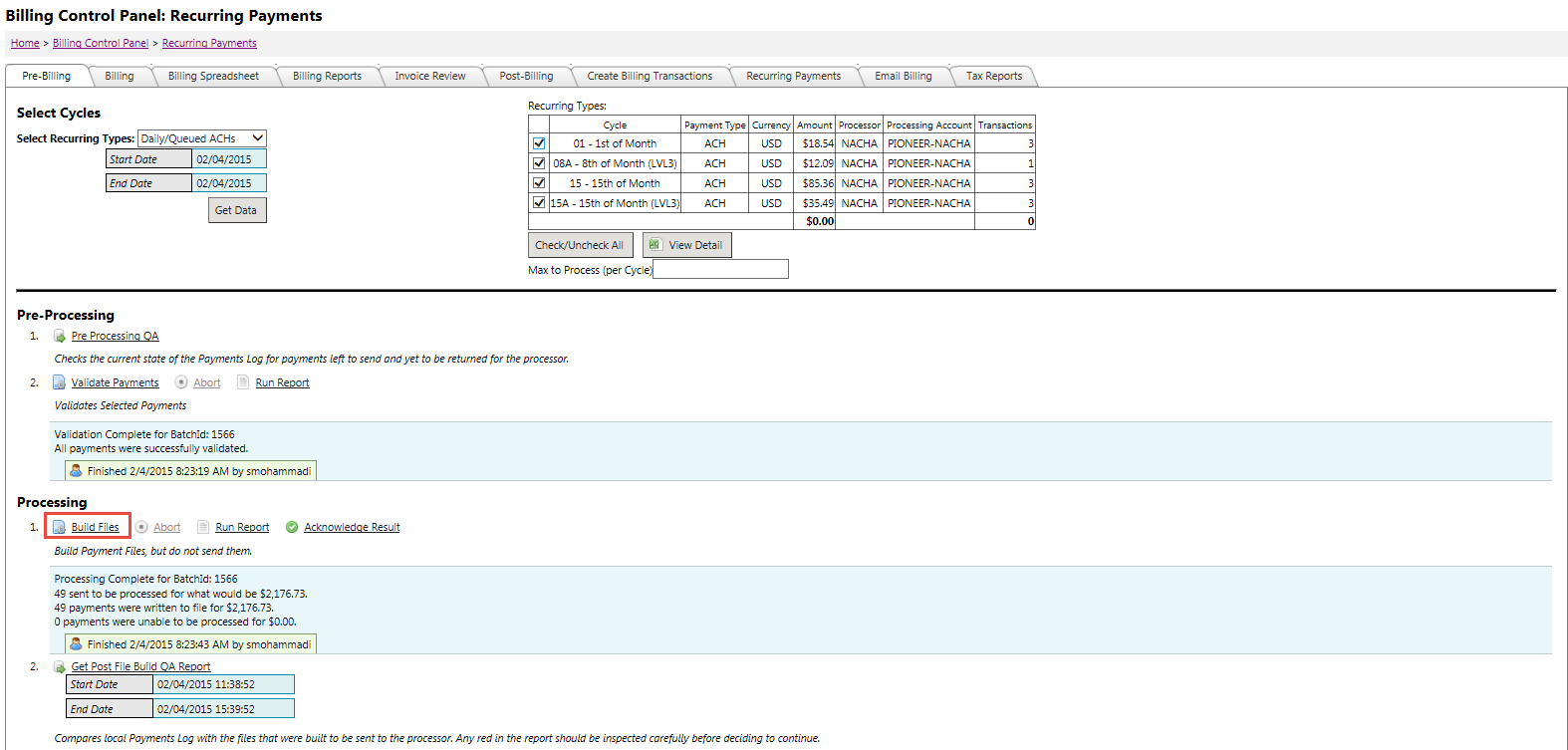
For Batch Credit Card processing, with the Cycle(s) still selected in the Recurring Type Cycles table, click the Build Files button. A progress / information message will appear showing the status of the payment files that are being built. The files are typically built in batches of 2000.
Once all the files are finished, a confirmation message will appear showing the results along with the option to QA the newly built Files. This assumes that the Recurring Payments process was initiated in the last 4 hours. The Post Build File QA Start Date and End Dates will be filled based on the time the Recurring Payments tab is loaded to the screen with the Start Date being that load time minus the 4 hour window. This means that the QA will be using records created in the last 4 hour window. Please be sure to work with your Precision Account Manager on any discrepancies in this QA report.
Once the files have passed the QA point, they are ready to be sent to the processor. There are two options for sending payment files to a processor. 1 - Using the Send Files link will automatically send the files in a secure manner to the processor. 2 - The newly built files can be sent to a secure FTP location either at the processor or to the Client where it can then be manually picked up and sent on to the processor for processing. For this latter option, the Send Files button will be disabled. This option needs to be setup with Precision. Each of the newly generated files will be listed on the screen along with counts and total amounts.
When the Send Files process is utilized, responses from the processor will also come in through a file, a.k.a, a Return File. Return files may be present if the process is not the manual FTP process mentioned above. When Return files are ready, the Return Files link will enable and hovering over the link will provide details of the status of the Return Files.
Processing Return files in this way will pull payment responses back into TBS automatically which will include all approvals and failures.
Processing Step 2: Post Return QA:
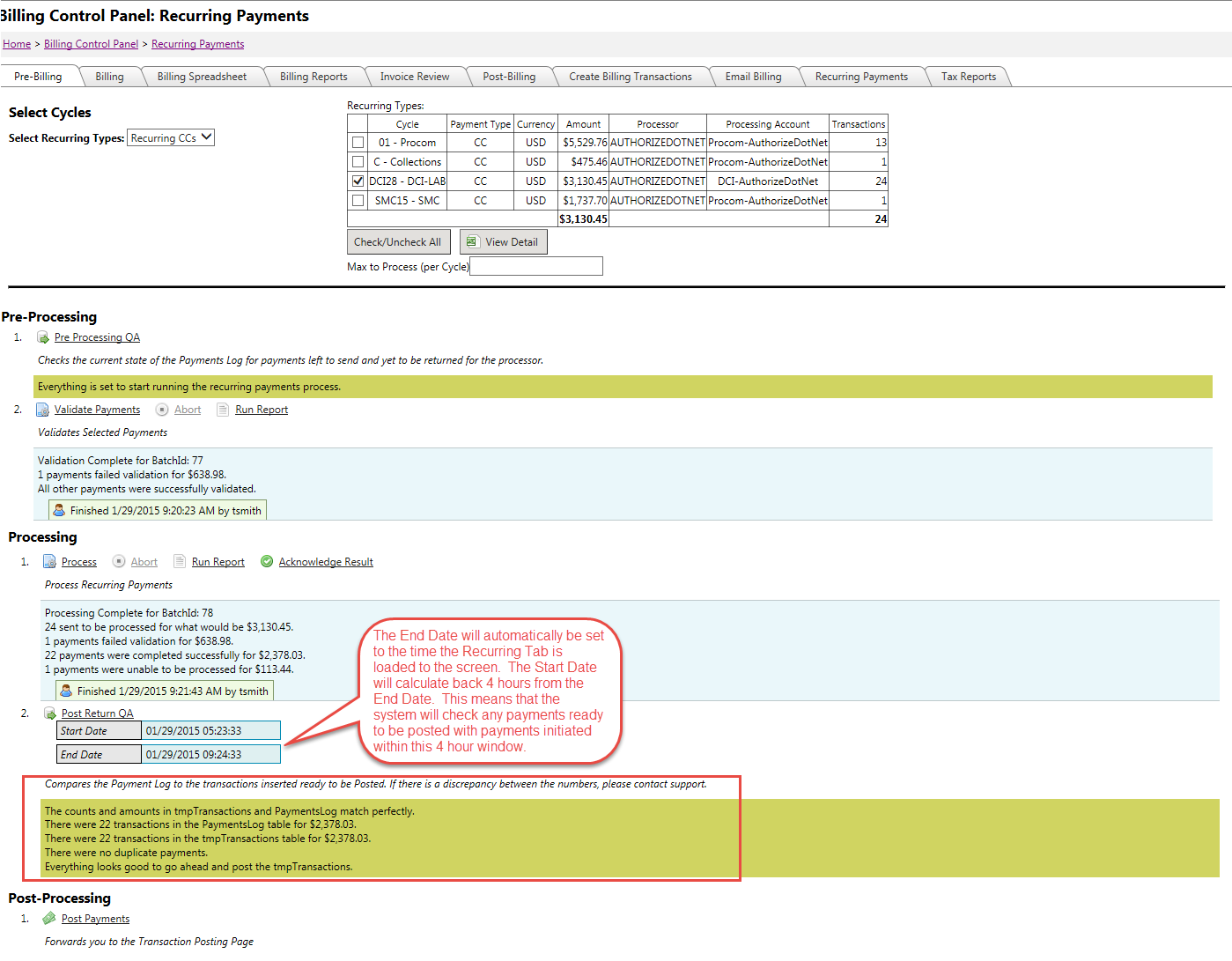
As the responses are read back from the processor (either for real time or for batch), a temporary transaction is created for any approved payments. It is important to do a post return QA step to ensure that all responses were received from the payment processor and have been recorded to TBS properly. This process will compare any payments that have been recorded in the Payments Log against any payments that are ready to be posted. It will use a 4-hour window for comparing data. This assumes that the Recurring Payments process was initiated in the last 4 hours.
The Start Date and End Dates will be filled based on the time the Recurring Payments tab is loaded to the screen with the Start Date being that load time minus the 4 hour window. Important: If the Post Return QA report does not match, it is important to review any "ready to be posted" transactions to see where the discrepancy might be. This can be done from the Transaction Posting screen. It is possible that there was a payment initiated prior to the 4 hour window and not yet posted. If this is the case, the QA numbers would not match as there would be one more transaction to post than appeared in the Payments Log for the 4 hour window of time.
While it is impossible for any customer already in the Recurring process to come in and manually initiate a credit card / ACH payment, customers that are not part of the recurring process can do so. Therefore, if customers have come in to make payments while the Recurring process was running, it is possible that the Return QA amounts may be larger than the original amount Processed in Processing Step 1 above. If there is ever any discrepancy that cannot be easily discovered by reviewing the transactions waiting to be posted, please be sure to contact your Precision Account Manager for assistance.
Post-Processing
Once all the data has been validated and QA'd, it is time to post the transactions so that the payments reflect on the customer accounts. The Post Payments link will redirect you to the Transaction Posting page. From here, the ACH/CC transactions can be pulled in, reviewed, and then Posted.
Step 1: Click the Post Transaction link
This link will simply redirect you to the Transaction Posting page where all transaction posting takes place.
Step 2: Click the Get CC / ACH Transactions button
The payments sent through the payment processor are kept separate from manually posted transactions. The top Credit Card/ACH grid will show the total number of transactions and the total amount to post. These transactions will need to be pulled into the bottom grid by clicking the Get CC / ACH Transactions button.
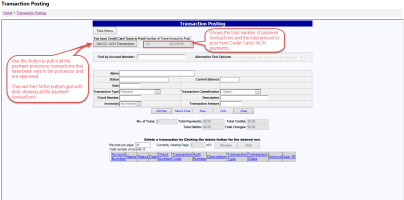
Step 3: Review data & Select Post from the Transaction Task Menu
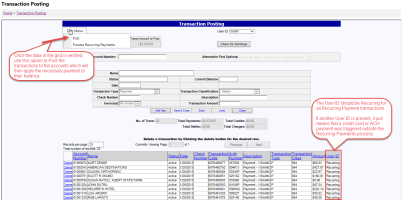
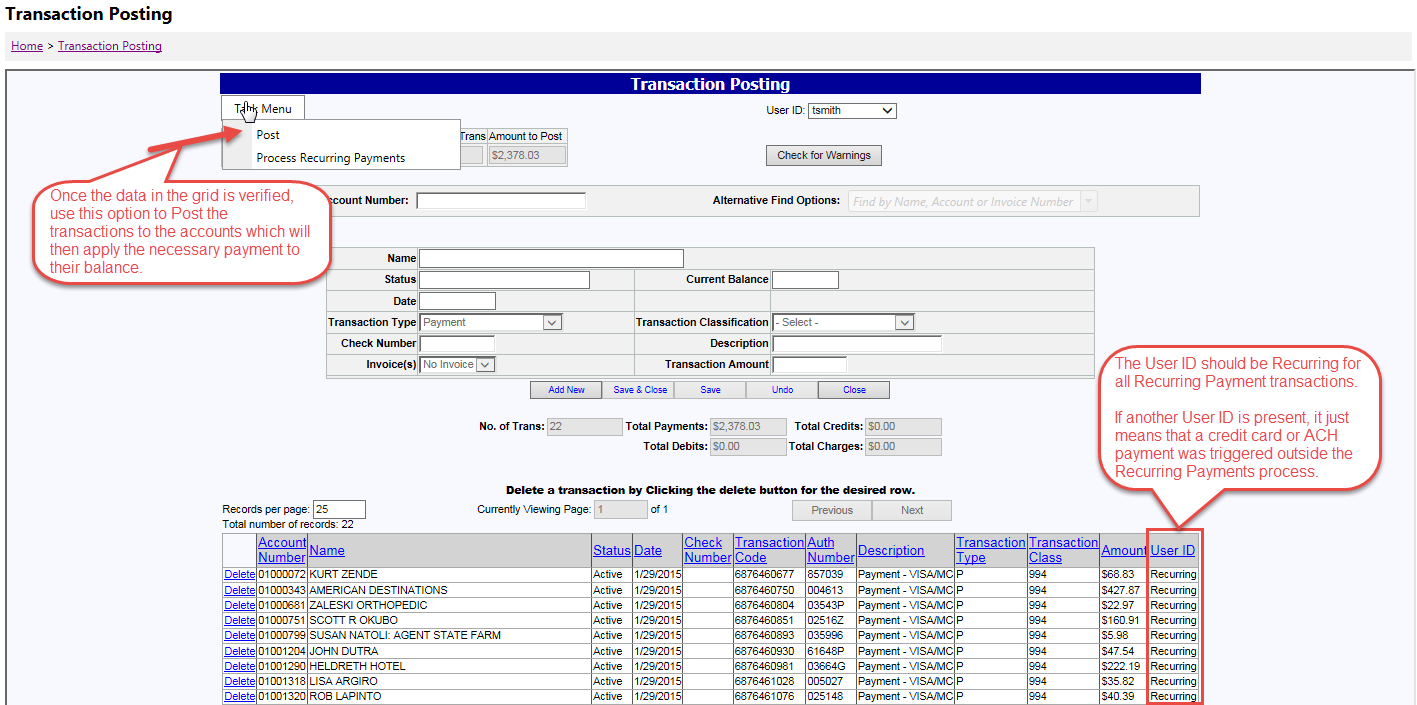
Review the data in the temp transactions grid at the bottom of the Transaction Posting Screen. This will include all the approved recurring payments that were just pulled in. Note: It is possible that if any customers manually triggered a one time payment using a Credit Card or ACH, that these transactions could be present as well. These can be easily reviewed (if desired) by looking at the UserID column in the grid. All transactions from the Recurring Payments page will have a value of "Recurring". Other credit card or ACH payments initiated outside this process will have a unique Account Number or UserID.
The summary table above the grid will show the total No. of Transactions, Total Payments, etc. This can be used for verification.
Once everything is verified, select the Post option available from the Task menu to post transactions showing in the grid. Once complete, the BatchID will appear along with a link to the Transaction Report.

At this point, all Recurring Payments are complete, processed and applied to the accounts for the Cycles that were selected from the Recurring Payments tab. Payments on accounts can be viewed from the Transaction tab under Billing Information.